Deep Sky Objects
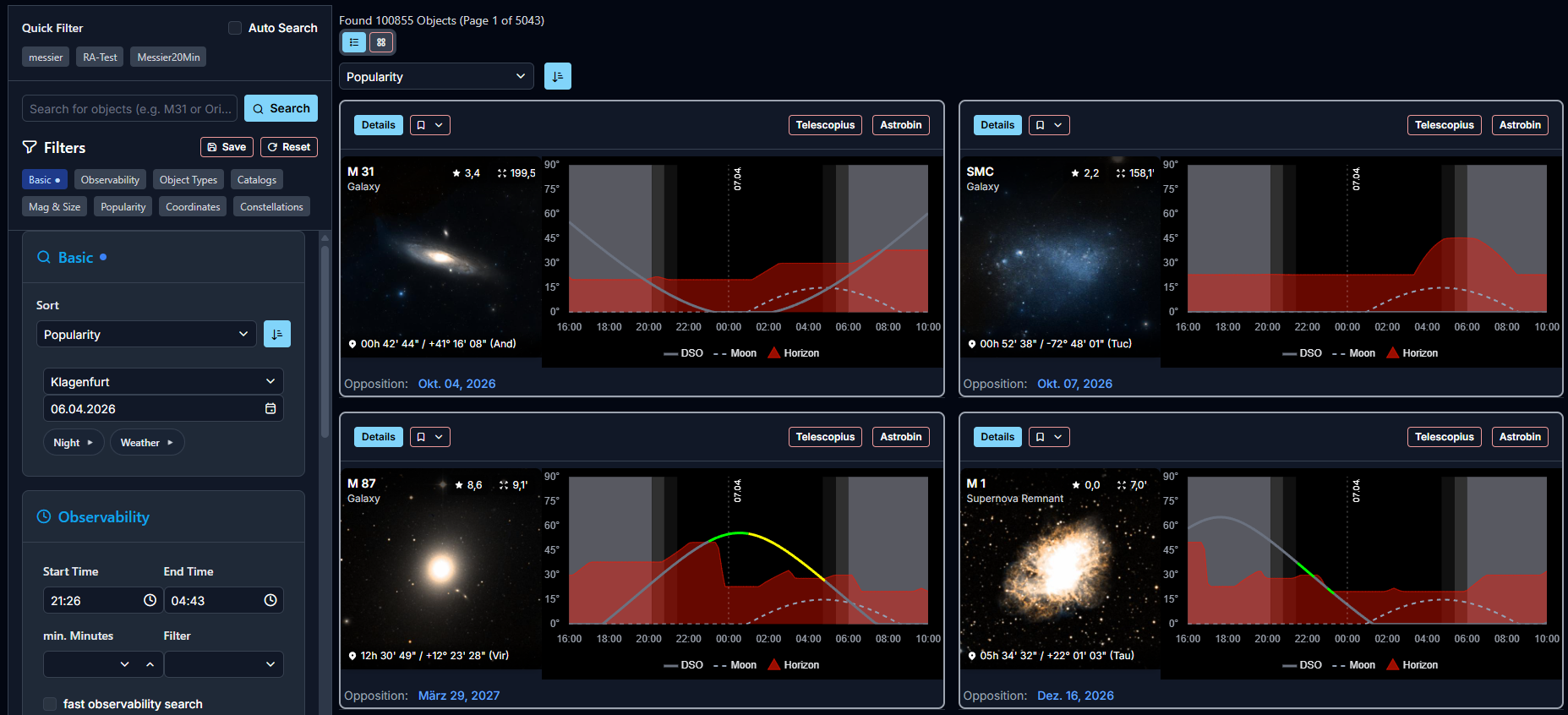
The Deep Sky Objects page is AstroManager's catalog browser.
This is where you explore the object database itself, apply broad filters, and discover candidates before you commit them into bookmarks or active targets.
AstroManager currently includes more than 106,000 objects in this database.
The object preview images shown are automated cut-outs from the Sky Atlas HiPS viewer.
What This Page Is Good At
Use Deep Sky Objects when you want to:
- browse the catalog more broadly
- search by designation or name
- reopen saved filters
- inspect object details before deciding what to do with them
What You Can Do Here
Typical actions on this page include:
- searching for objects by name, catalog ID, or general criteria
- applying saved filters from the dashboard or from earlier research
- opening object details with observability context
- jumping into Sky Atlas
- moving promising objects into Bookmarks or directly into Targets
The Most Important Filter: Observability
The single most important filter on this page is usually the observability filter.
It matters because a target can be interesting without being realistic for your observatory, your current season, or tonight's actual usable window.
In practice, observability filtering helps you narrow the database to objects that:
- rise high enough from your observatory
- have enough distance to the moon for a certain filter
- stay usable long enough, or within a specific time window, to fill gaps in your night plan
That is usually the fastest way to turn a huge database into a shortlist that actually makes sense.
For the best results, configure your observatory carefully in Observatories, especially the local horizon.
Because this filter requires more calculation, slower devices may need a bit longer when it is active. In that case, you can enable Faster Observability Search, which trades a little precision for speed.
Seasonal Filter
Deep-sky search also supports full-year observability filters for long-term planning.
This is especially useful when you want to:
- search for targets that become worthwhile in a later season
- build a future shortlist instead of planning only for tonight
- identify objects that stay usable for a minimum duration during the year
AstroManager requires doing a cached pre-calculation for each observatory, which makes repeated seasonal searches much more practical. It is recommended to do this pre-calculation on Windows or Android, but not on WebApp due to performance reasons.
Altitude Chart
See Altitude Chart
DSO Details Page
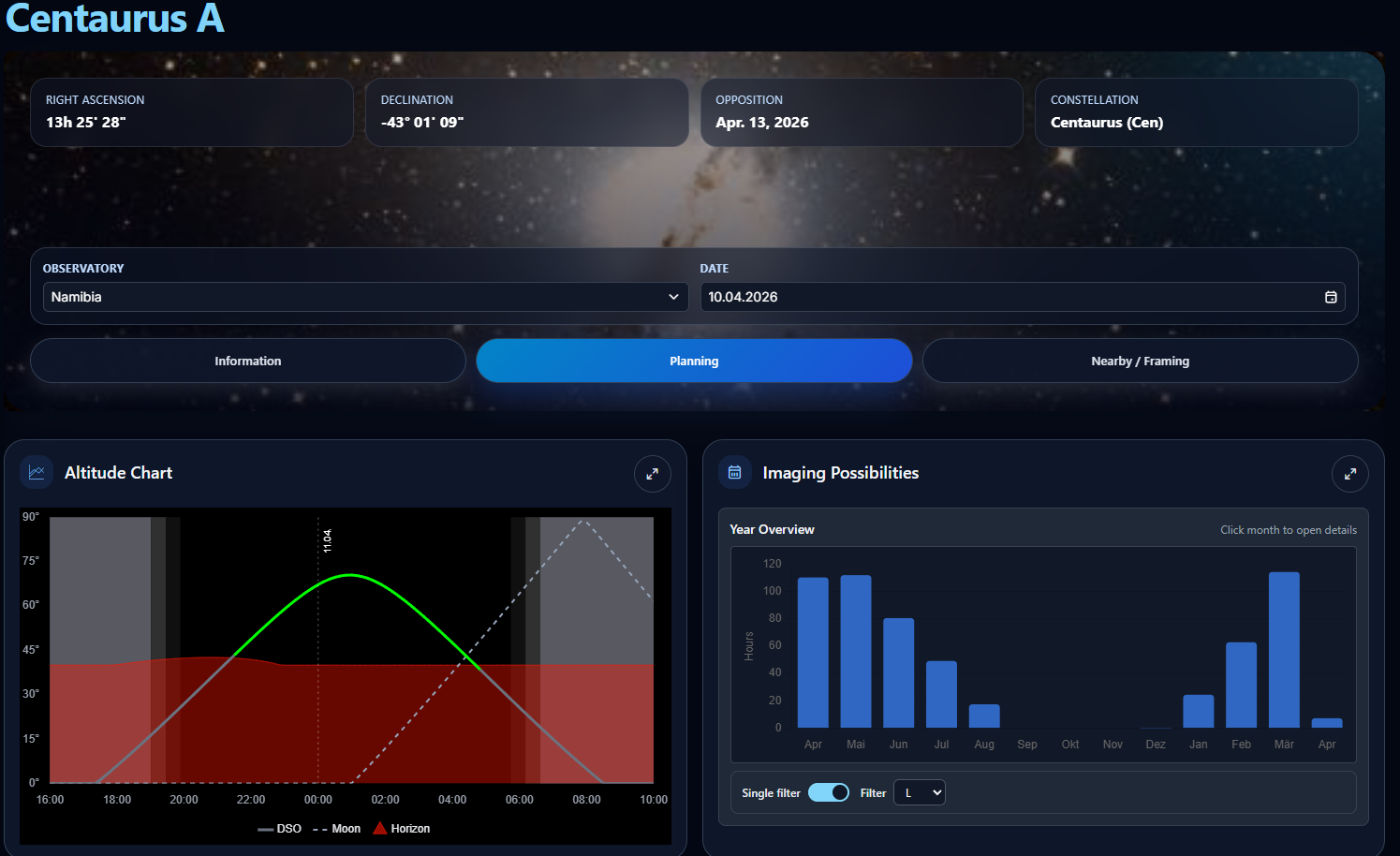
Opening a Deep Sky Object takes you into the DSO details page.
Classic and Modern View Modes
The DSO details page now has two presentation modes:
Classicfocuses on the card-based layout and saved custom views-
Moderngives you a mobile-optimized structure with dedicated sections for information, planning, and nearby / framing -
If you switch the mode manually, AstroManager remembers your last choice separately for mobile and desktop.
The modern view is especially useful on phones because it reduces layout friction and keeps the most important target details easier to scan while moving between sections.
Customizable Layout and Saved Views
The DSO details page ('Classic' view mode) is customizable. You can rearrange the visible cards and save your preferred layouts as reusable views. The views for Desktop (multiple columns) and Mobile (only one column) are separate.
See Dynamic Views.
Imaging Possibilities
The Imaging Possibilities section helps you understand when and how productively the target can be imaged - with a preview for the full next year. See Imaging Possibilities.
Nearby Objects
The nearby objects section searches the surrounding sky around the current object and shows other relevant DSOs close to it.
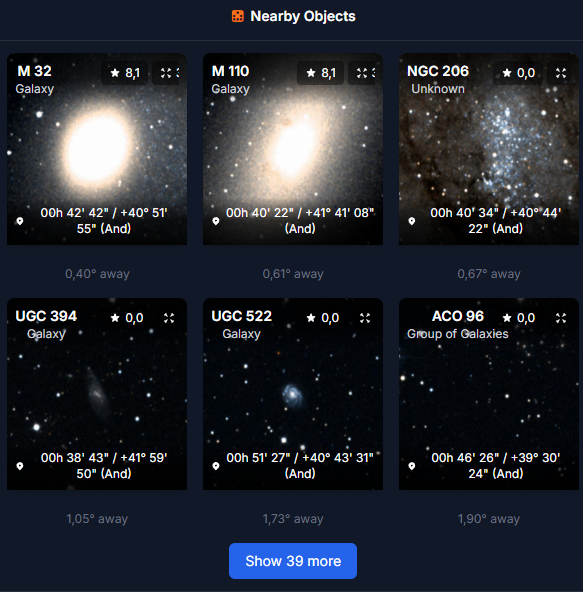
The list is ordered by proximity, so the closest found object is shown first.
When you click one of the nearby objects, AstroManager opens the DSO details page for that object directly.
This is especially useful when you want to:
- discover alternative framing candidates
- compare nearby objects before bookmarking one
- understand whether a mosaic or broader project might make sense
Nearby Bookmarks / Targets
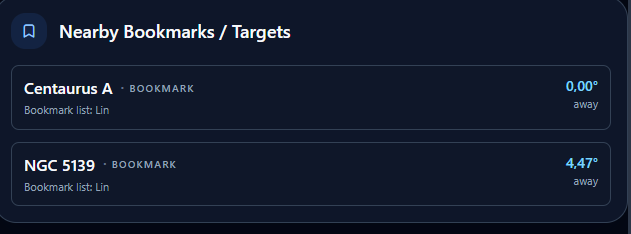
The Nearby Bookmarks / Targets section shows your own saved bookmarks and targets that are close to the current object.
It looks for entries within 5° of the current DSO and orders them by proximity, so the closest match is shown first.
This is especially useful when you want to:
- notice that you already planned a nearby target earlier
- review whether a bookmarked object and an active target overlap enough to combine or reorganize them
Observation Notes
You can add your own observation notes on the DSO details page.
These notes are personal working notes for your own planning and review. Other users do not see them.