Community Targets
Community Targets are AstroManager's public target-sharing layer.
Use them when you want to discover new targets, how other users framed or planned a target, search for collaborative imaging projects or create one yourself, connect with other astrophotographers (also using the Collaboration Hub) and more.
Community Search
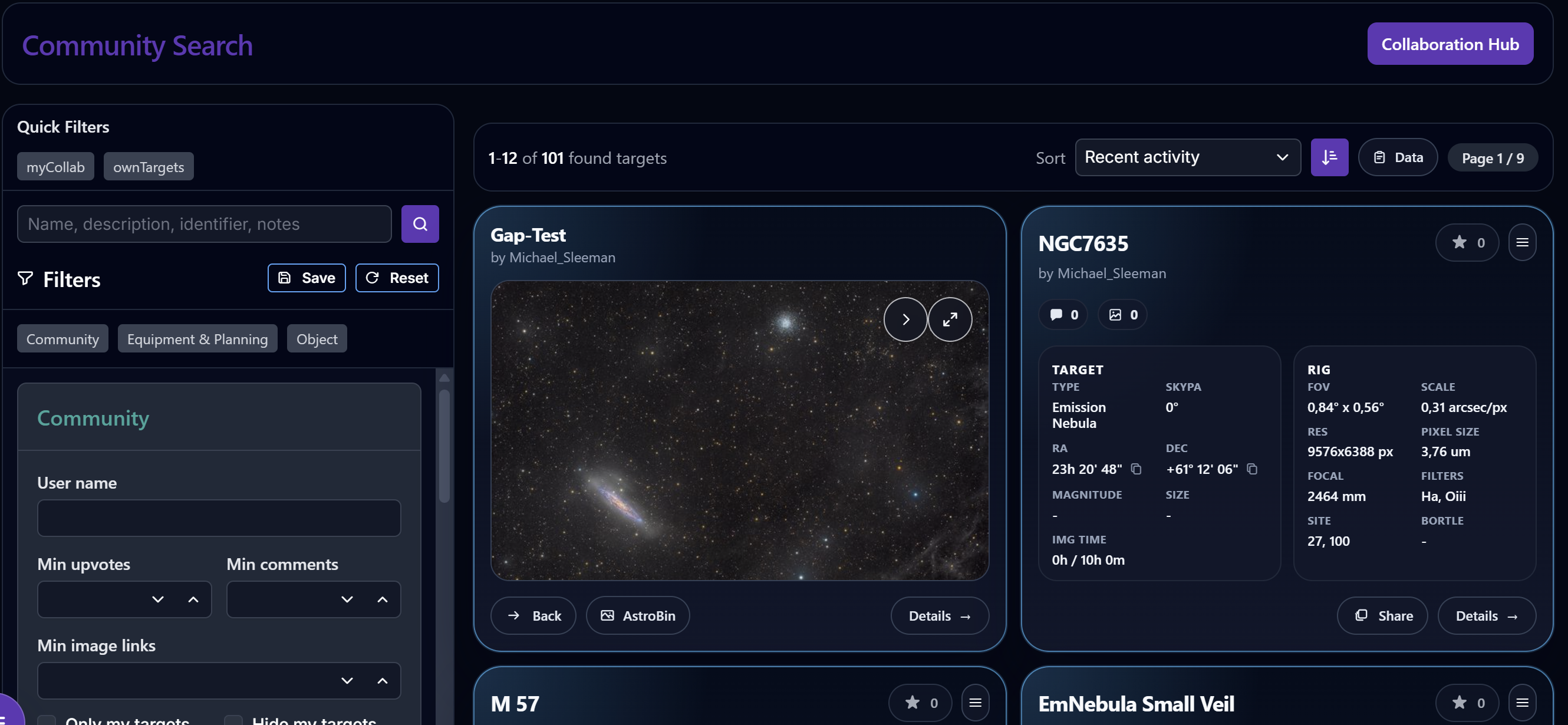
The Community Search page is the main entry point for discovering community targets.
From there, you can:
- search community targets and view their finished images
- open a target's dedicated detail page to e.g. compare the fov/framing
- inspect who created or collaborates on a target
- jump into the Collaboration Hub if you want to work/chat with other users instead of only browsing
Each community target has its own shareable detail page and URL.
Community Target Pages
Opening a community target leads to its detail page.
This page combines planning context and community context in one place. It includes sections such as:
OverviewPlanningFramingRigCollabCommentsImage links
That makes it possible to compare how another user framed an object, what equipment was used, which filters matter, and how other users discuss or reference the target.
AstroBin And Image Links
Community target pages can contain public image links, especially AstroBin references.
This is useful when you want to:
- attach a finished reference image to a target
- compare framings before building your own version
Community targets can also use one of these linked images as the visual preview image for the target card in the search result.
Comments, Upvotes, And Follows
Public community targets support lightweight interaction.
You can:
- comment on a target
- reply to discussions
- upvote targets you find useful
- follow targets so they are easier to revisit later
Public User Profiles
Every user has a public profile page.
A public profile can show:
- profile picture and bio
- public links such as website, Instagram, or AstroBin
- follower / following counts
- community targets
- collaboration reviews
Make One Of Your Targets Public
Every target you create is automatically public / also a community target. You can make targets private via the make private option in the dropdown-button of the community target. As soon as there are comments / attached images / active collaborative projects for this target, you cant make it private anymore.
Good To Know
- A clear public username and profile picture make it much easier for other users to find or invite you. See Profile Management.
- Community pages are designed for discovery, discussion, and reference sharing.