Runtime Safety
Runtime Safety defines how AstroManager should react when a remote or unattended night no longer looks healthy.
It is especially useful when:
- you run unattended nights
- you manage remote observatories
- you want clear recovery or stop behavior instead of ambiguous failures
No safety guarantee
Runtime Safety helps reduce risk during unattended imaging, but it cannot guarantee the safety of your equipment or observatory.
AstroManager is an assistance system, not a substitute for proper physical safeguards, weather protection, monitoring, and responsible observatory design.
We do not guarantee prevention of equipment damage, data loss, or other failures, and you remain responsible for safe operation of your setup.
What A Runtime Safety Policy Is
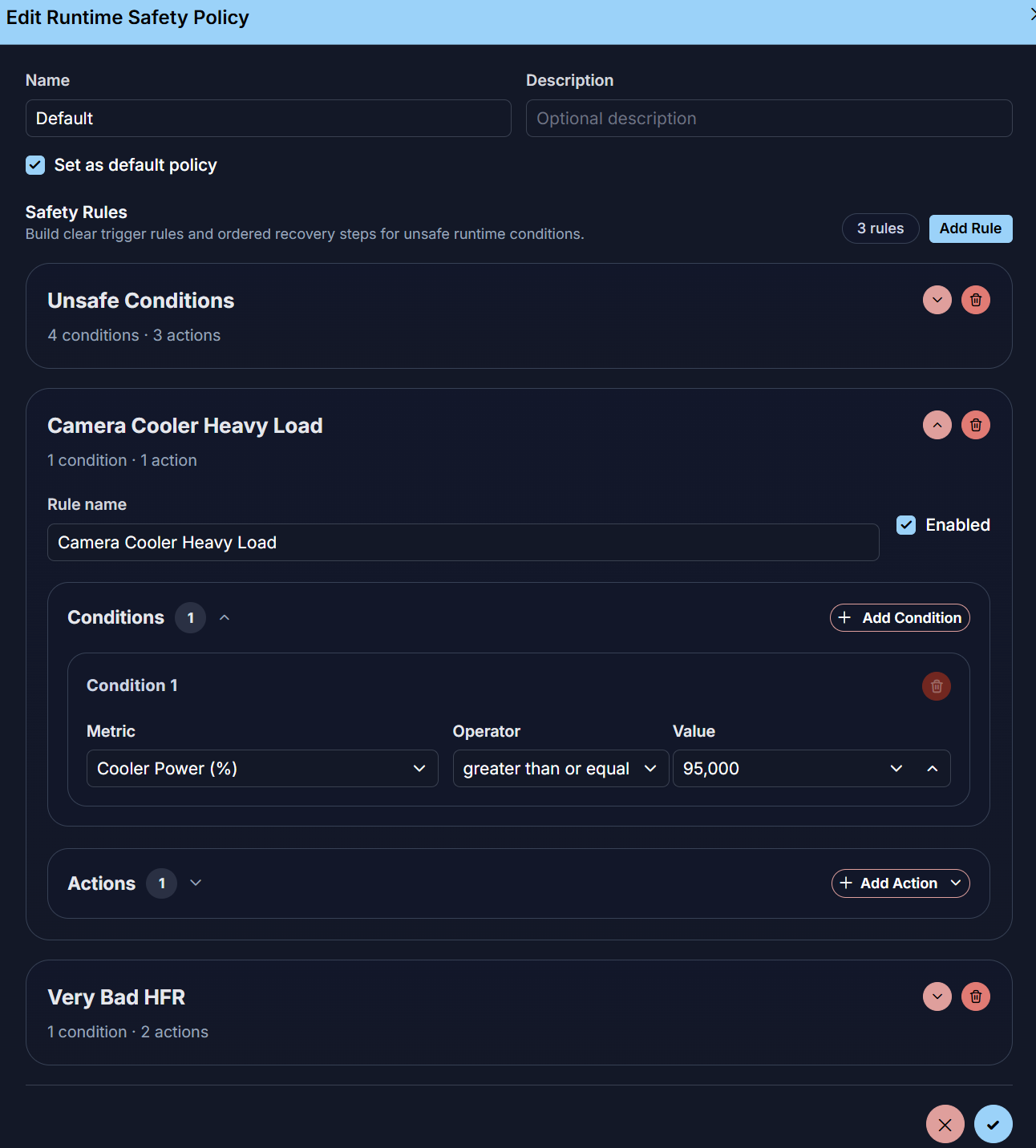
A runtime safety policy is a set of rules.
Each rule contains:
- one or more conditions
- one or more actions
- optional activation windows
- optional debounce, recovery delay, cooldown, and per-night execution limits
When a rule becomes true during runtime safety evaluation, AstroManager runs the configured actions in their defined order.
How To Configure It
The usual setup flow is:
- Create a runtime safety policy in
Settings. - Start from a policy template or add one or more custom rules.
- Define when the rule is active, if it should only run during a specific part of the night.
- Define the conditions that should trigger each rule.
- Decide how stale or unknown telemetry should be handled.
- Define debounce, recovery delay, cooldown, and per-night execution limits if needed.
- Define the actions AstroManager should execute.
- Save the policy.
How To Apply It To A Client
Open Client Configuration and select the desired Runtime stop / safety policy.
That assignment is done per client, so different telescope PCs can use different safety behavior if needed.
The client configuration dialog also lets you define the email recipients that should receive runtime safety notifications.
Conditions
Conditions define when a rule should trigger. Inside one rule, conditions are connected via OR. That means the rule becomes active as soon as any one of its conditions matches.
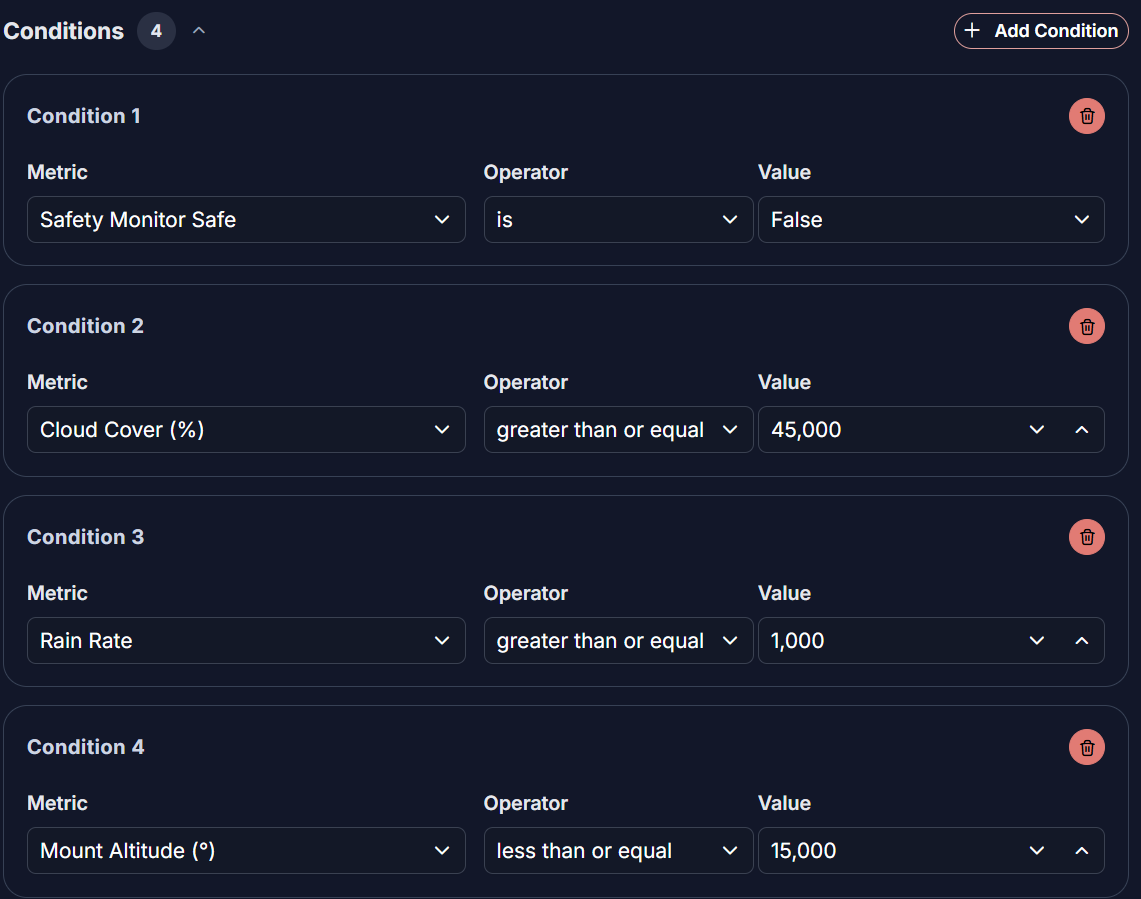
AstroManager currently supports these condition metrics:
Safety Monitor SafeTriggers when the safety monitor reports safe or unsafe, depending on the operator you choose.Safety Monitor ConnectedReacts when the safety monitor connection is lost.Weather ConnectedReacts when the weather source connection is lost.Guiding RMS (arcsec)Watches guiding quality and can react if the RMS becomes too high.HFR of Last CaptureWatches the HFR of the most recent capture and can react if focus or image quality degrades.Star Count of Last CaptureWatches how many stars were detected in the most recent capture and can react if the frame quality drops.Cloud Cover (%)Uses cloud-cover data from the weather source.Rain RateLets you react when rain is detected.Weather AgeReacts when weather telemetry is too old to trust.Sky Quality (SQM)Uses the reported sky quality value if available.Mount Altitude (°)Watches the current mount altitude.Mount TrackingReacts when tracking state changes unexpectedly.Mount ParkedReacts when the mount is parked or not parked.Cooler Power (%)Watches how hard the camera cooler is working.Guider ConnectedReacts when the guider connection changes.Guider Guiding (during exposure)Reacts if the guider is not actually guiding while an exposure is running.Guider Settling (during exposure)Reacts if the guider remains in settling state during an exposure.Camera ConnectedReacts when the camera connection is lost.Mount ConnectedReacts when the mount connection is lost.Sequence RunningReacts when the sequence is running or stopped.Heartbeat AgeReacts when the client heartbeat is stale.Last Capture AgeReacts when no fresh capture has been received for too long.
Timing And Telemetry Behavior
Runtime Safety policies can now model more than a simple "condition equals action" flow.
Use these options when you want to avoid noisy, repeated, or poorly timed safety actions:
Activation windowsLimit a rule to a time range or night phase.Stale telemetry handlingDecide when old weather, heartbeat, capture, or status data should be treated as unsafe.Unknown-data handlingChoose whether missing data should be ignored, treated as safe, or treated as unsafe for a rule.DebounceRequire a condition to stay true for a configured time before the rule fires.Recovery delayRequire the system to remain recovered for a configured time before early resume or follow-up behavior.CooldownPrevent the same rule from firing repeatedly in quick succession.Per-night execution limitsCap how often a rule may run during one night.
Operators
For numeric conditions, you can use operators such as:
greater thangreater than or equalless thanless than or equalequalsdoes not equal
For boolean conditions, you can use:
isis not
Use multiple conditions when you want several different trigger paths to lead to the same action chain, for example Cloud Cover (%), a disconnected weather source, or a failed safety monitor.
Actions
Actions define what AstroManager should do once a rule triggers. The order matters.
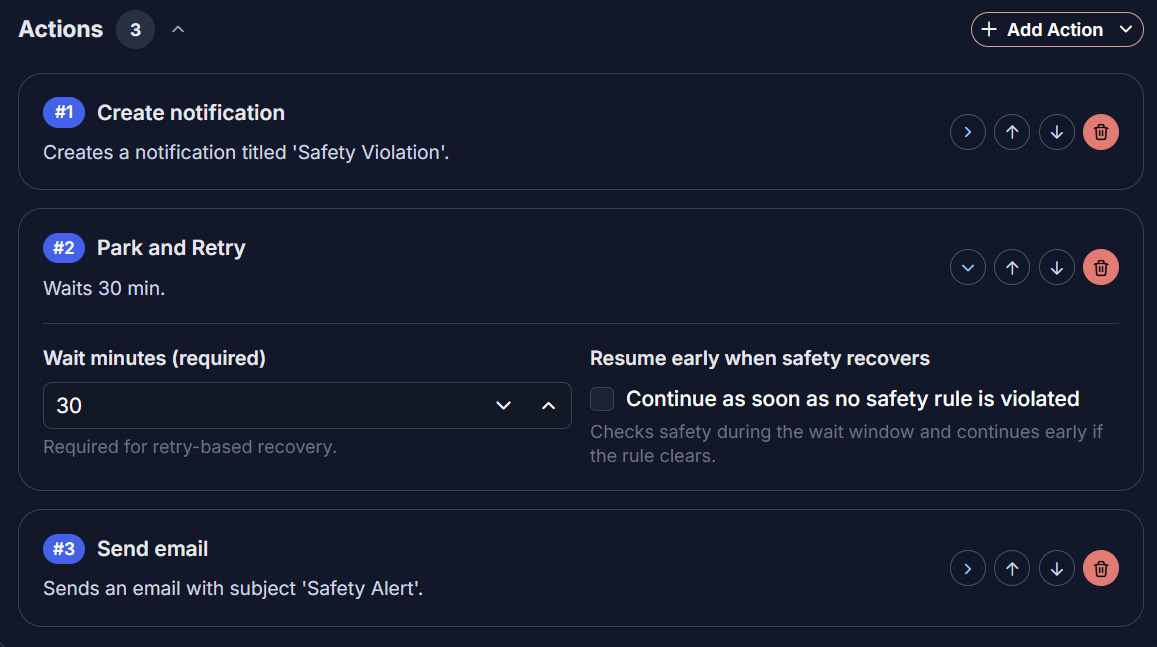
AstroManager currently supports these actions:
Stop sequenceStops the full N.I.N.A. sequence immediately.Park and retryParks the mount, or stops tracking if parking is not available, then waits for the configured time. It can optionally continue early if the rule clears and safety recovers.Stop tracking and retryStops mount tracking and waits for the configured time. It can optionally continue early if the rule clears and safety recovers.Reconnect equipmentTries to reconnect one selected component and then continues.Reconnect all equipmentTries to reconnect all equipment and then continues.Calibrate guiderRuns guider calibration and then continues.Run autofocusRuns autofocus and then continues.Skip AM schedulerStops only the AstroManager scheduler part. N.I.N.A. continues with the rest of the sequence.Send emailSends an alert email and then continues with the next configured action.Create notificationCreates an AstroManager notification/event and then continues with the next configured action.Adjust cooler by deltaChanges the camera cooler setpoint by a positive or negative delta in degrees Celsius and then continues.
Action Details
Some actions have additional settings:
Park and retry/Stop tracking and retryYou define the wait time. You can also enableResume early when safety recovers, which lets AstroManager continue before the full wait time ends.Reconnect equipmentYou choose which component should be reconnected:Critical imaging (camera + mount + guider),Camera,Mount,Guider,Focuser,Filter wheel,Rotator,Safety monitor,Weather, orDome.Adjust cooler by deltaNegative values cool more, positive values warm the camera.Send emailYou can customize subject, body, and additional recipients. Client-level recipients are still included automatically.Create notificationYou can customize the notification title and text.
Good Practice
A good first runtime safety policy is usually simple:
- one rule for lost safety-monitor or weather connection
- one rule for serious guiding or image-quality degradation
- email or notification alongside the main recovery action
For remote setups, it is usually better to start with conservative actions and then refine the rules once you have seen how your system behaves in real nights.