Image Grading
Image Grading controls how AstroManager should evaluate captured subs after they were received from a client.
It is used together with Exposure Templates, Imaging Goals, and Targets.
If an exposure template defines a minimum accepted image grade, only captures at or above that grade count toward the progress and completion of the imaging goal.
Captured images are never deleted automatically. Image grading only affects evaluation, progress tracking, and later review.
What Image Grading Is For
Image grading belongs between acquisition and final processing in tools such as PixInsight.
Its job is to give you a fast and consistent first pass:
- which subs look stronger
- which captures should count toward imaging-goal progress
How It Works
Once AstroManager receives the metadata of a capture from the client, the image can be graded automatically.
For that to happen, the client must have:
Auto image gradingenabled- an
Image grading criteria setassigned in Client Configuration
If image grading is enabled for the client, AstroManager calculates a numeric score and a grade band such as A, B, C, D, or E.
Criteria Set Basics
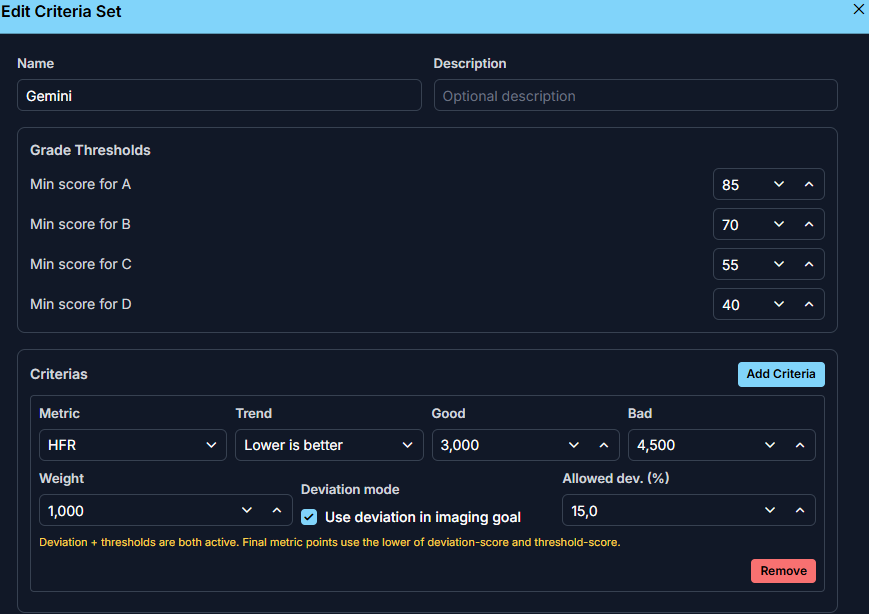
An image grading criteria set contains three main parts:
- grade thresholds
- scoring criteria
- hard-reject criteria
Grade Thresholds
The thresholds define which score belongs to grade A, B, C, or D.
Anything below the configured D threshold effectively falls into the lowest band.
This gives you a simple way to decide what should still count as acceptable for a specific workflow.
Scoring Criteria
Each criteria row describes how one metric should influence the final score.
Currently supported metrics include:
HFRStar CountGuiding RMSAltitudeSky QualityWind SpeedCloud CoverHumidityTemperatureDew PointPressureBackground MeanMedian ADUCooler Temp DevianceRA/Dec Deviance
For each metric, you define:
TrendWhether lower values are better or higher values are better.GoodThe point where the metric should still be considered strong.BadThe point where the metric should be considered poor.WeightHow strongly that metric should influence the final result. (only relevant if you evaluate multiple metrics)Grading modeWhether the metric should be evaluated by absolute threshold, by deviance from the baseline, or by both.Allowed dev. (%)How far the current value may deviate from the baseline before the score is reduced.
If both threshold and deviance mode are enabled, AstroManager evaluates both parts and applies the stricter result for that metric.
Deviance scoring uses the median baseline instead of the average, which makes the result less sensitive to a few unusual frames.
Hard Rejects
Hard-reject criteria are used when a capture should fail immediately instead of only receiving a lower score.
Use them for conditions where the frame should not count at all, for example a severe guiding spike, a large coordinate mismatch, a major temperature deviation, or another metric that clearly makes the sub unusable for the goal.
Hard-rejected captures are still kept for review. They simply do not count toward imaging-goal progress unless you later change the grading decision.
How It Affects Imaging Goals
Image grading becomes operational when it is combined with Exposure Templates.
There, you can define the minimum image grade that should still count for a specific imaging goal.
That means:
- if the image grade is accepted, the capture counts toward goal progress
- if the image grade is below the required minimum, the image is still kept, but it does not count toward goal completion
Score Calculator
AstroManager includes a built-in calculator so you can test an image grading configuration directly before relying on it during real imaging.
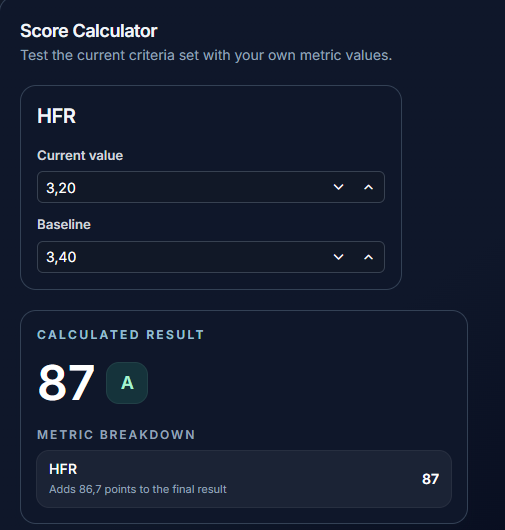
The calculator lets you:
- enter sample metric values
- enter baseline values for metrics that use deviation scoring
- see the calculated score and grade band immediately
- inspect the metric-by-metric contribution to the final result
This is the fastest way to understand whether a criteria set behaves the way you expect.
Regrading Existing Captures
You can regrade images later if needed.
This is useful when:
- you changed the grading configuration
- you want to apply a different criteria set
- you want to include or exclude more images from progress tracking
Regrading is available for a target and also for broader client-based scopes. For more details see Targets.
Because goal progress depends on accepted captures, regrading can change progress values and may also complete or reactivate imaging goals and targets.
You can also recalculate metrics and regrade linked captures from the Image Library, and imported frames can be graded during Image Import & Review.