Review Captures of Targets
Each target includes a View Captures action.
This opens the captured-images dialog for that target and lets you review what has already been shot.
That is the main place to answer questions like:
- which subs were captured for this target already
- which captures were accepted or rejected
- whether progress still matches the quality you want
What You Can Do Here
Inside the dialog you can:
- review all captures of the target
- filter by imaging goal, date range, and for mosaics also by panel
- compare accepted and rejected captures
- inspect grading values and image quality metrics
- regrade the target if your image-grading setup changed
- build and compare Integration Previews from cloud-backed captures
- manually accept, reject, or delete selected captures
Classic View
The Classic view is best when you want a broad overview of the session history of a target.
It combines:
- summary statistics
- filter options
- the recent-captures list
- quick trend charts such as HFR and star count
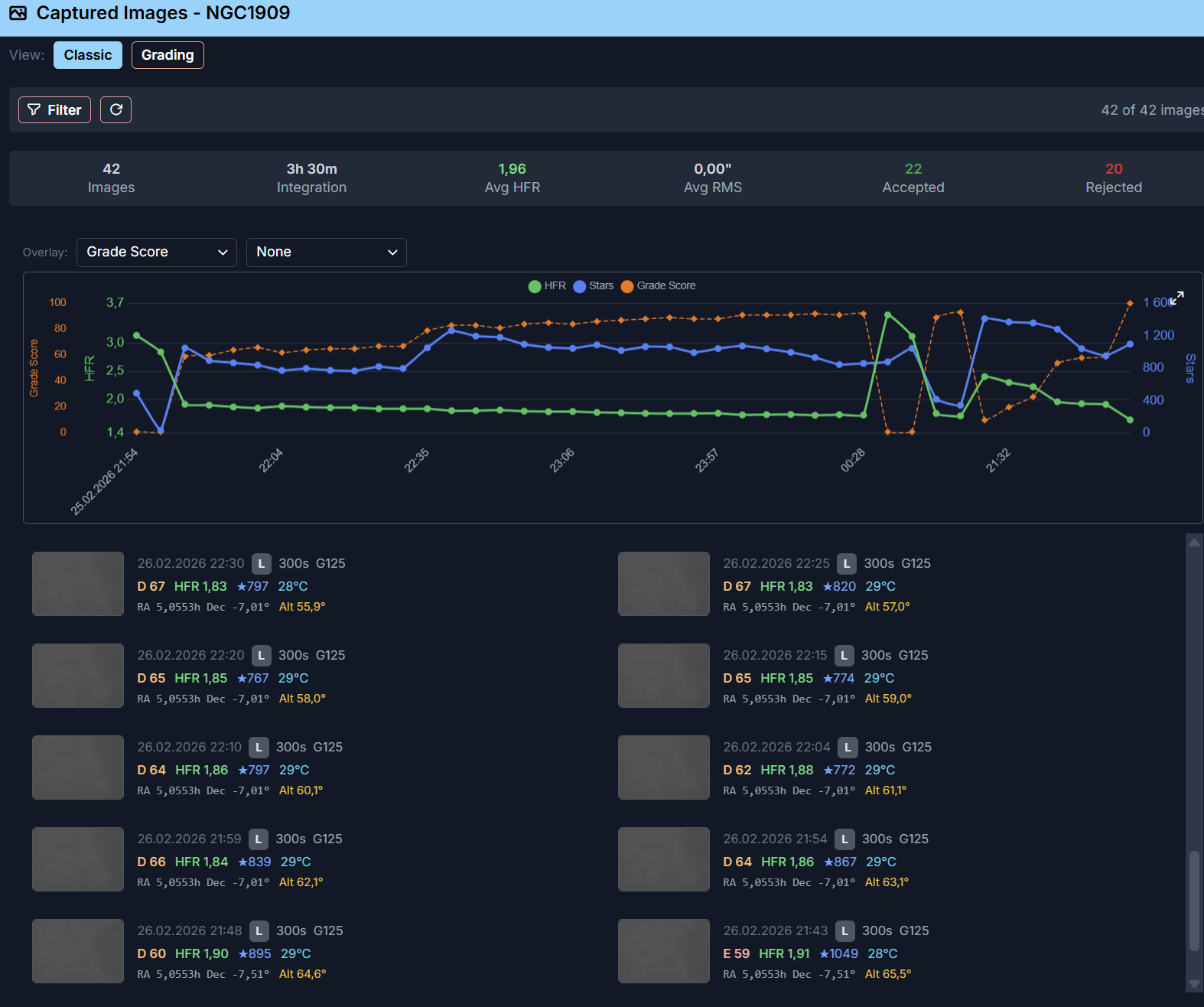
This is usually the fastest way to review how a target progressed over multiple nights.
Grading View
The Grading view is the more technical review mode and can be used to regrade the captures, change their grade manually or delete captures completely (only from AstroManager).
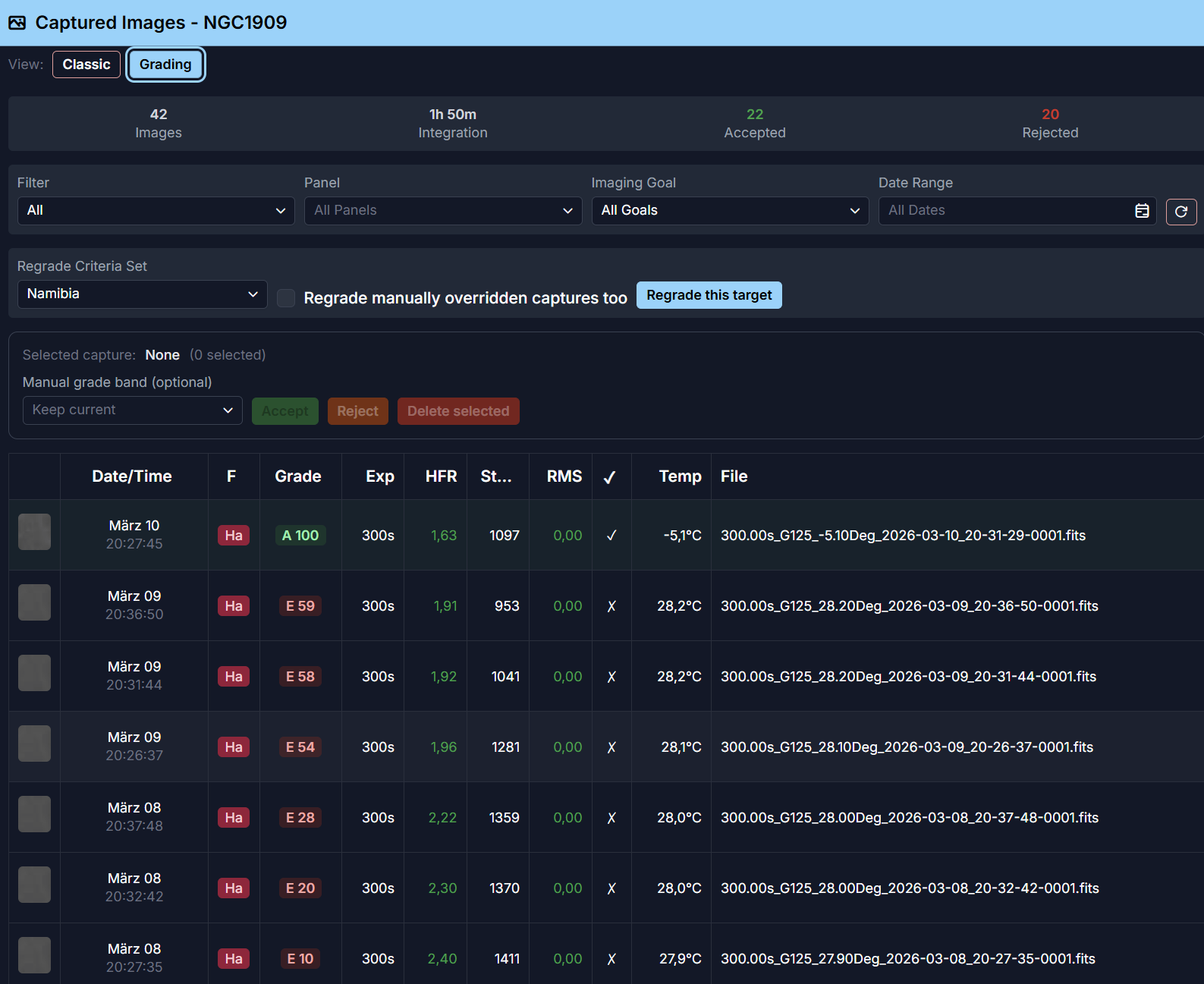
If your Image Grading setup changes later, you can re-evaluate captures directly from this dialog. You can also choose a Regrade Criteria Set explicitly instead of using the current default.
The dialog also supports manual corrections for selected captures.
For one or multiple selected captures you can:
- set an optional manual grade band
AcceptRejectDelete selected
Deleting/Rejecting accepted captures will reduce target progress, because accepted captures are what count toward imaging goals.
Integration Preview Builder
AstroManager 1.2 adds Integration Preview Builder to the captured-images dialog.
Use it when the target has cloud-backed originals and you want a quick combined preview without leaving AstroManager.
The builder lets you choose:
- imaging goal
- minimum accepted grade
- number of frames to use
- preview scale
- calibration mode
- rejection method and sigma value
Saved previews can be opened, compared, cancelled while running, or deleted when no longer needed.
For the full workflow, see Integration Previews.
Image Details
Clicking a thumbnail or using the details action opens the image detail view for one capture.
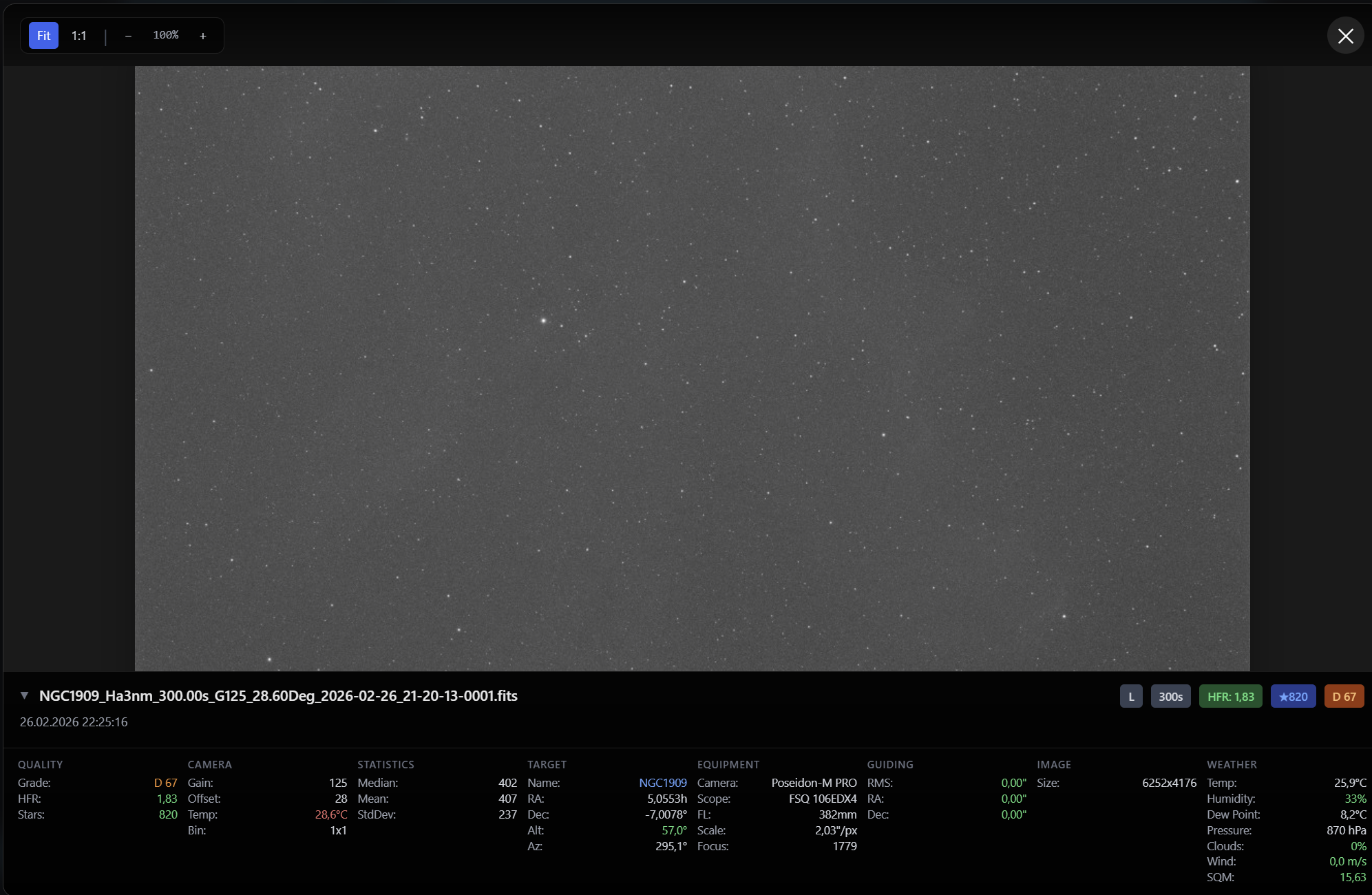
This is where you can inspect one image more closely, including its thumbnail preview and the detailed metadata AstroManager collected for it.