Remote Control Dashboard
The Remote Control Dashboard is the live operations page of AstroManager.
It brings together current client status, equipment state, target progress, Night Preview, Sky Atlas, recent captures, N.I.N.A. logs, and night reports in one place.
What This Page Is For
Use this page to:
- check what the selected client is doing right now
- monitor the current sequence and current target
- review tonight's plan and identify imaging gaps to fill them quickly
- react quickly with the most important remote actions
- check recent captures and logs without guessing
- open Sky Atlas directly from the live operations context
What Remote Control Is Not
Remote Control is not meant to fully replace direct access to N.I.N.A. or the imaging PC.
It is designed to show current status, give you the most important remote actions, and make remote nights much easier to supervise. But for deeper technical investigation it can still be required to connect directly to N.I.N.A. or the observatory PC, for example when you need to:
- inspect detailed plugin or driver issues
- adjust settings inside e.g.
N.I.N.A.orPHD2 - work on polar alignment
- troubleshoot hardware-specific problems in depth
AstroManager will improve further in that direction, but it is intentionally not a complete replacement for full direct observatory access.
Status Update Delays
Small delays of status updates are normal due to technical reasons.
Depending on connection quality and other factors, delays of a few seconds up to about 15 seconds can be expected.
If you repeatedly see clearly longer delays, please report that as a bug.
Client Context
The dashboard always works in the context of the currently selected Client.
That means the whole page is tied to:
- one observatory + equipment setup
- one imaging PC / N.I.N.A. instance
- one live scheduler context

The top area lets you switch between clients and quickly verify:
- the current connection state
- the last update age
- the default scheduler configuration assigned to that client
The dashboard also lets you switch between local time and the observatory's current time in the top-right area. That is especially helpful if you monitor observatories in a different timezone.
Classic View
Classic View is the more configurable dashboard layout.
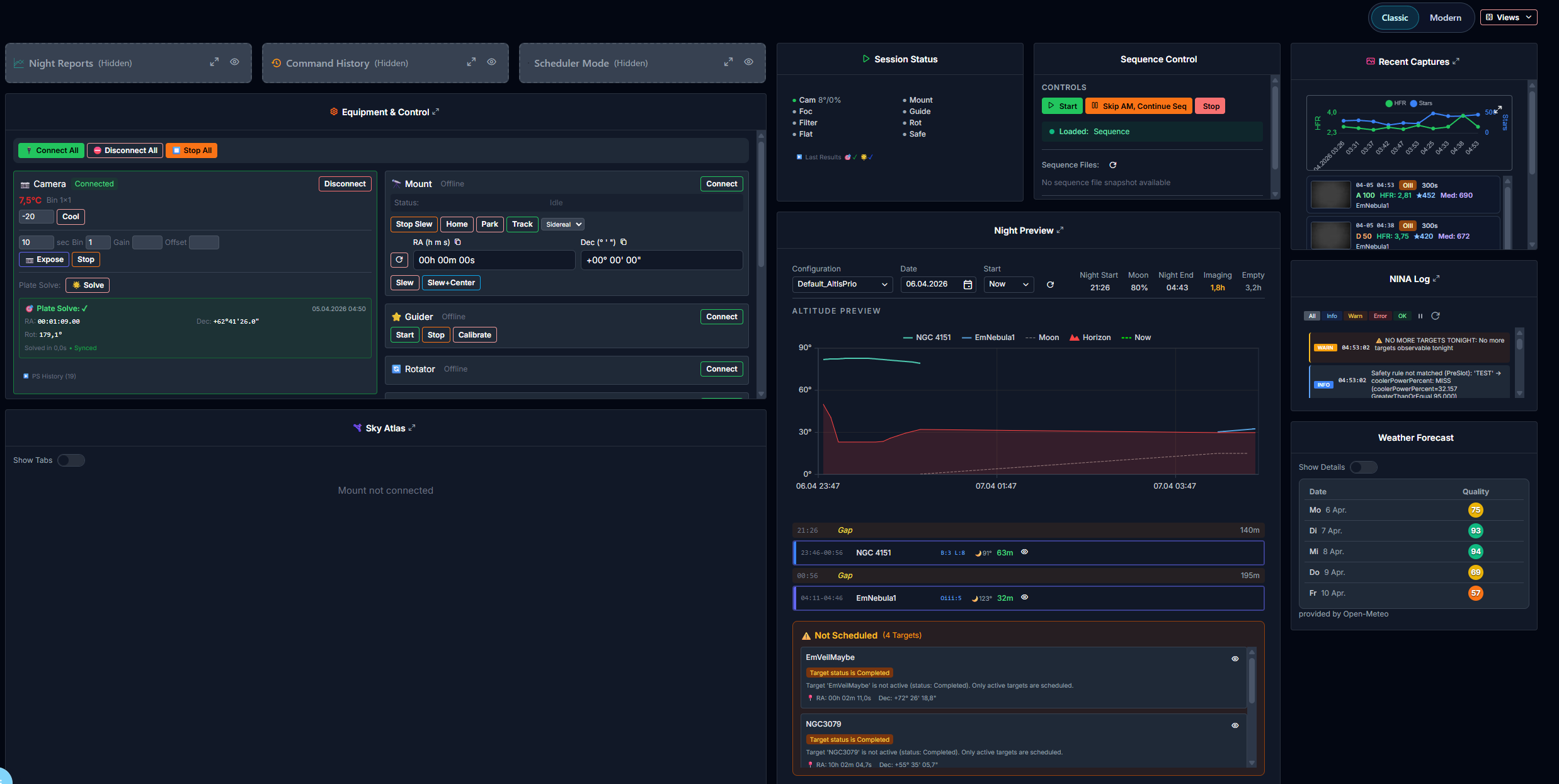
It is especially useful on desktop when you want most cards visible at the same time.
Classic View is a dynamic view. You can hide cards, reorder them, and adapt the layout to your own workflow. That view system is shared with other areas of AstroManager and is documented in Dynamic Views.
Main Cards in Classic View
The exact visible cards depend on your layout, but the most important cards are:
Equipment & ControlThis card gives you quick actions for mount, camera, guider, rotator, focuser, filter wheel, and similar components. At the Filter Wheel control you can also define the important filter mapping if yourN.I.N.A.filter names differ from AstroManager's standard filter names. See Installation & Configuration.Session StatusShows what the client is doing now, which target is active, and the most relevant current state of the equipments. For mono clients, this card also warns you if AstroManager detectsN.I.N.A.filter names that still need a filter mapping.Sequence ControlLets you start, stop, or continue the currently loaded sequence. Or load a completely different sequence.Night PreviewShows AstroManager's current plan for the night. See Night Preview for the dedicated details.Recent CapturesGives you a quick look at recently captured frames and key grading / star metrics. Includes manual exposures too.N.I.N.A. LogHelps with first-line troubleshooting directly inside AstroManager. This is a trimmed-down log of the AstroManager Scheduler inside N.I.N.A., not the full N.I.N.A. log.Sky AtlasOpens the live sky context for the current mount position.Weather ForecastHelps you judge the quality and likely usefulness of the next nights.Night ReportsLets you access or generate night summary PDFs.Command HistoryShows important remote actions that were triggered and if they were successful.Scheduler ModeLets you see and change whether AstroManager schedules automatically or manually by your defined queue.
Modern View
Modern View is the newer interface and is especially strong on mobile, but it is also very useful on desktop because it keeps each area focused and easier to scan.
The modern layout uses a left-side tab navigation and puts the currently selected work area on the right.
Session Status Tab
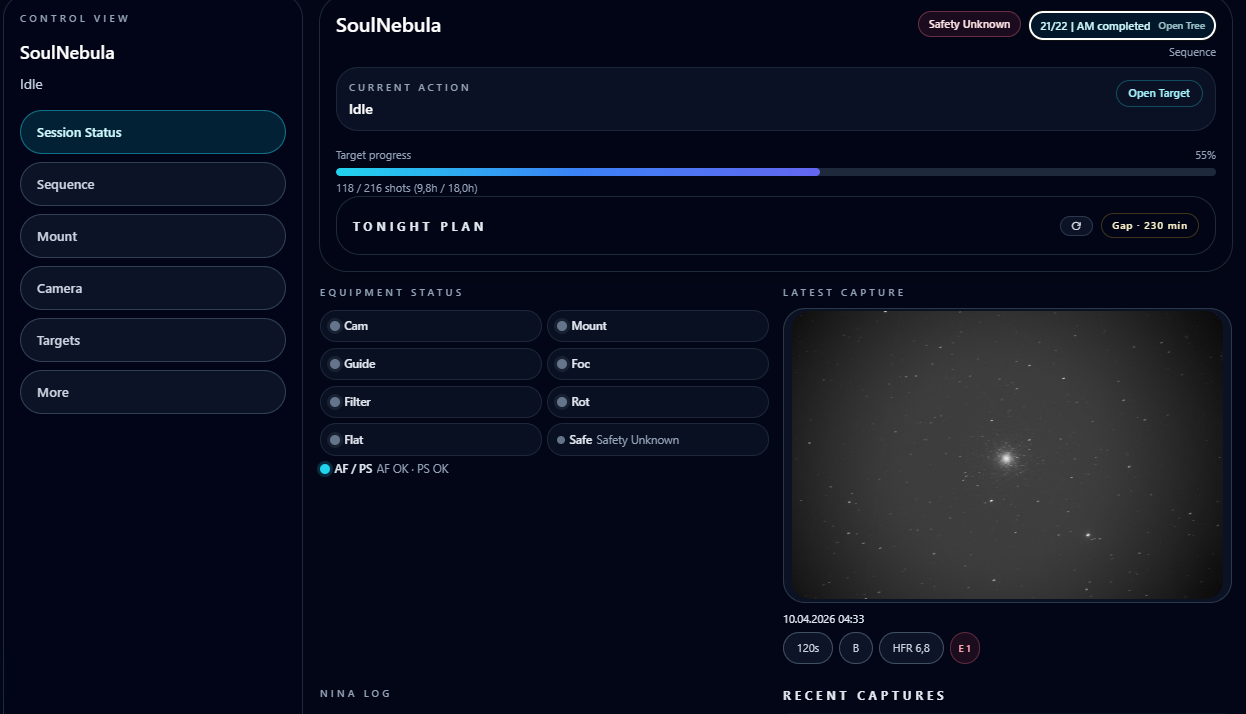
This is the best first tab when you only want a fast status check.
It shows:
- the current action
- current target / no active target state
- the
Tonight Plansummary - compact equipment status rows
- a mono-filter mapping warning when
N.I.N.A.filter names do not match AstroManager and still need mapping - the latest capture preview
- and more..
Sequence Tab
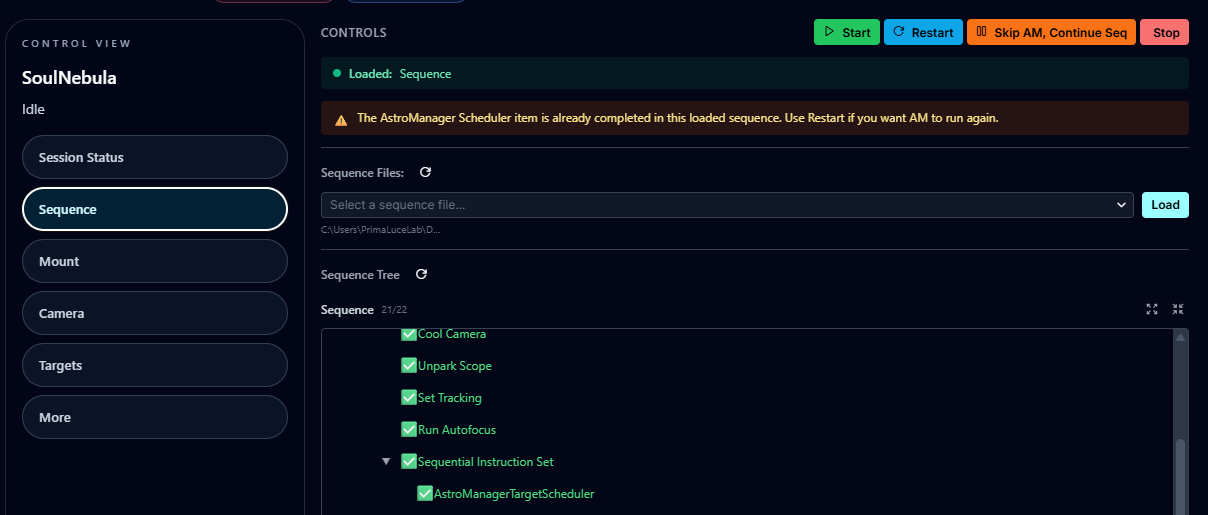
The Sequence tab focuses on what is currently loaded in N.I.N.A..
It shows:
- core sequence actions like
Start,Skip AM, Continue Seq, andStop - the currently loaded sequence file
- the current sequence tree / snapshot
This is the best tab when you want to verify that the correct sequence is loaded and where execution currently sits.
Mount Tab
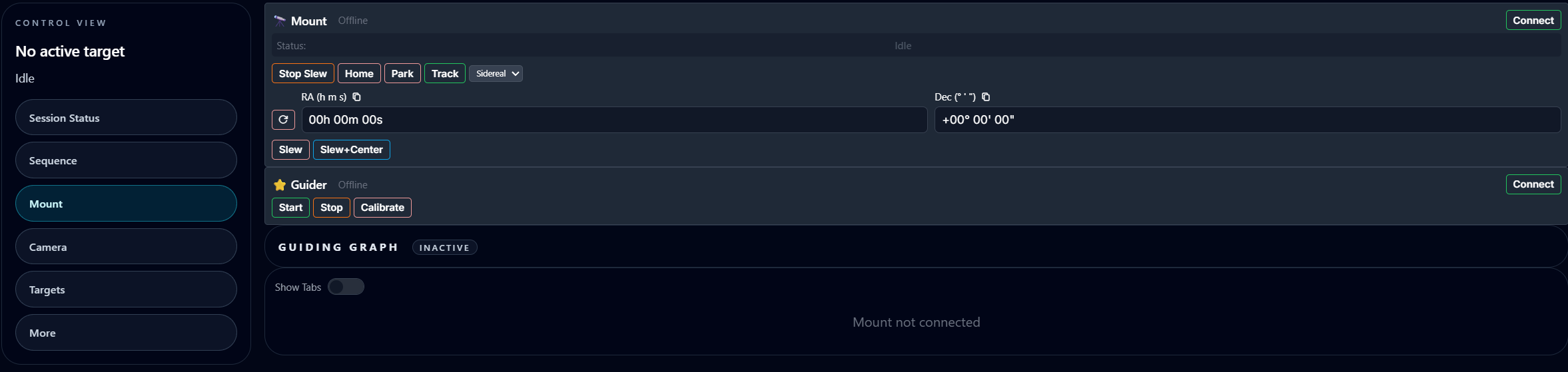
The Mount tab focuses on mount and guider control.
It includes:
- slew-related actions and mount controls
- guider actions and the guiding RMS graph
- SkyAtlas with mount context
Camera Tab
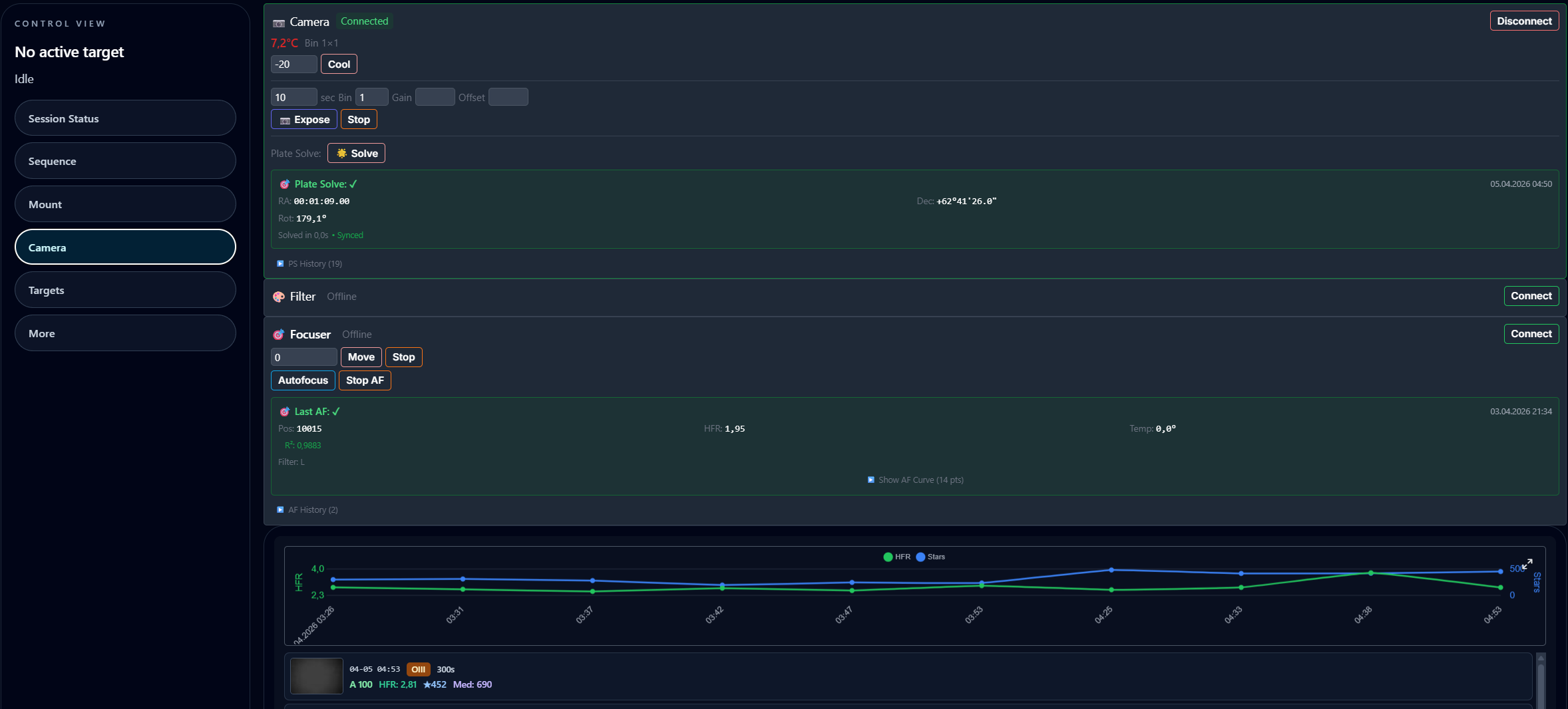
The Camera tab focuses on imaging hardware and recent frame quality.
It includes:
- camera status and controls
- plate-solve information
- focuser and autofocus information
- recent captures
Targets Tab
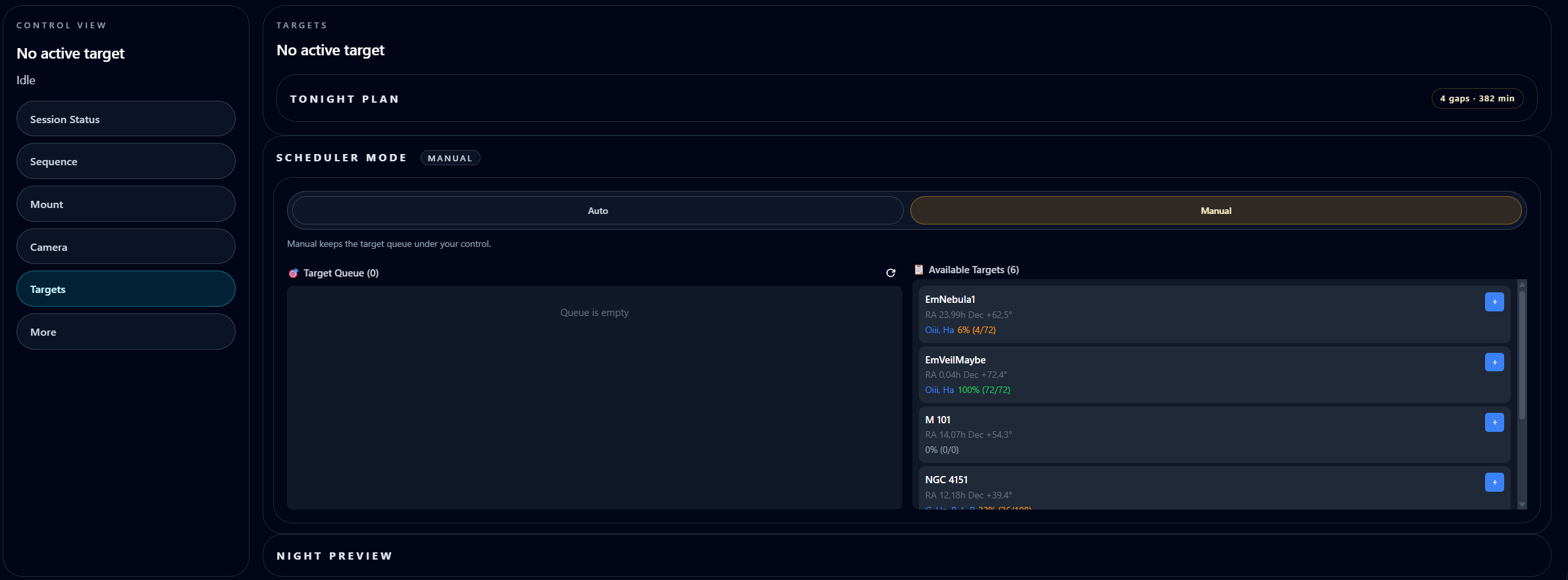
The Targets tab combines:
- current target context
Tonight PlanScheduler Mode- target queue and available targets
Night Preview
This is the best place to understand why AstroManager plans the night in a certain way and to intervene when needed.
Tonight Plan
Tonight Plan is one of the most valuable parts of the whole Remote Control Dashboard.
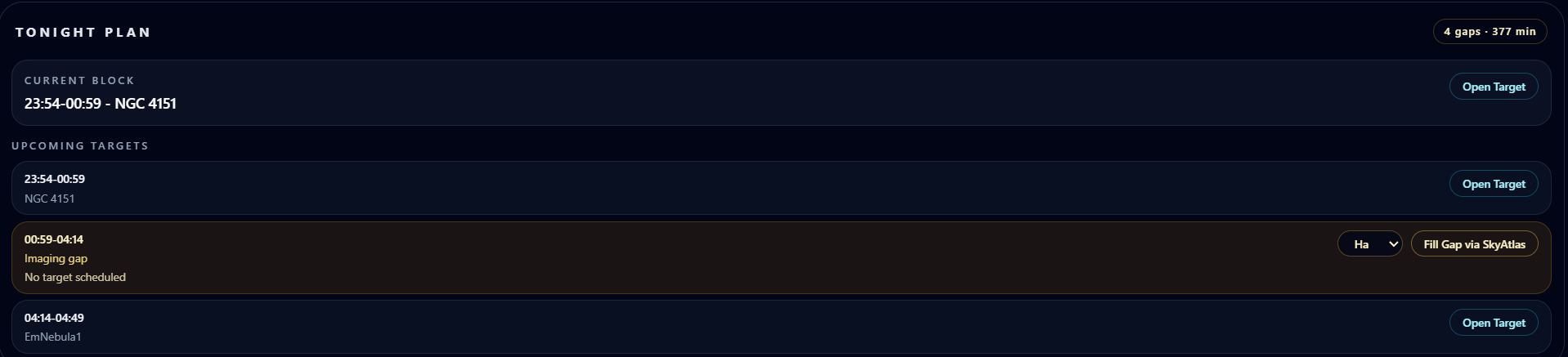
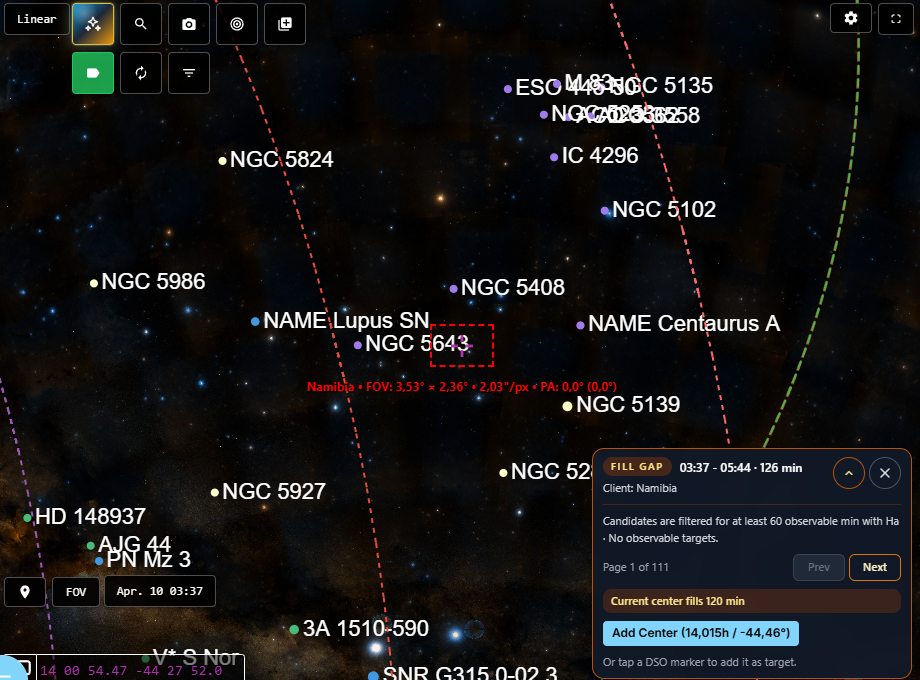
It gives you a compact live view of how AstroManager currently expects the rest of the night to play out and the extremely helpful feature to quickly fill imaging gaps with available targets.
Scheduler Mode: Auto vs Manual
Inside the Targets area you can switch between Auto and Manual.
AutoAstroManager selects the next suitable target automatically based on the current scheduler logic and available targets.ManualYou manage the target queue yourself directly here and keep control over what should run next.
This makes it possible to use AstroManager either as a mostly autonomous scheduler or as a guided target assistant.
More Tab
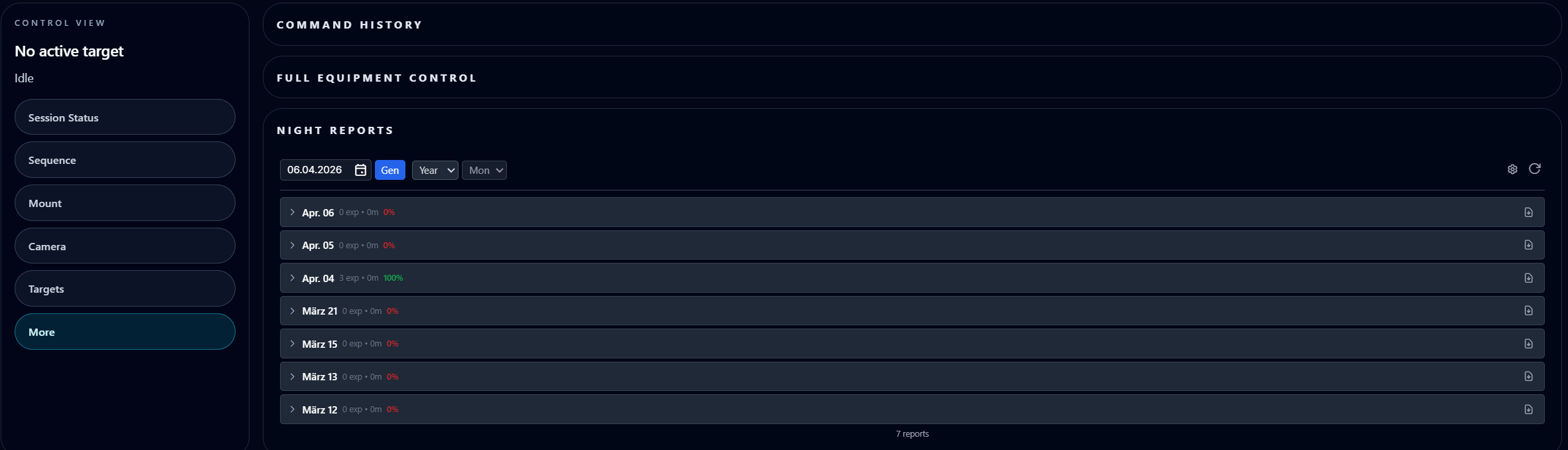
The More tab currently includes:
Command HistoryFull Equipment ControlNight Reports
Sky Atlas in Remote Control
The Sky Atlas card inside Remote Control is not just a passive map.
It shows the current mount position and can also be used to send slew commands to the mount. That makes it useful for both orientation and actual remote operation.
Night Reports PDF
Night Reports are the summary PDFs for completed or partially completed nights.
If at least some imaging was done, AstroManager can send the report automatically on the next day to the email addresses configured in Client Configuration, but only if Auto Email is enabled in the Night Reports section.
This gives you a useful next-day summary even if you did not watch the whole night live.