Dynamic Views
Dynamic Views let you customize the layout of the DSO Details Page and the Classic-View of the Remote Control Dashboard.
Why This Is Useful
Different tasks benefit from different layouts.
For example, you might want:
- one view for planning
- one view for review
- one compact view for quick checks
Manage Views
Open the view menu to create, edit, rename or delete saved layouts.

You can also assign a number to a layout. Once that is done, you can apply that layout quickly with Ctrl + that number.
Unlocking Layout Changes
The layout controls are only available when the layout is unlocked via the dropdown button.
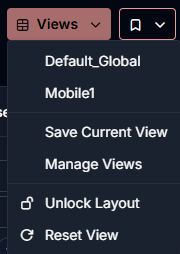
After unlocking the layout, you can choose how you want to rearrange the cards:
- drag and drop cards directly
- move cards with the arrow controls
Drag & Drop And Arrow Controls
The drag-and-drop button is the one with the six dots.
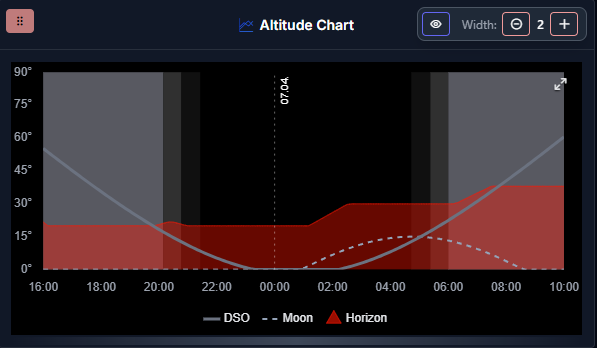
If you prefer more direct control, you can also change the layout with the arrow buttons instead of dragging.
The controls to move cards are only shown when layout editing is enabled through the dropdown button ("Unlock Layout").